How can I dictate directly into apps on my Mac?
Quick answer: Use a Mac dictation app with automatic text insertion. In Dictop, focus a supported text field, start recording with your shortcut or the menu bar, speak, then stop. Dictop can paste the transcript at your cursor, use supported simulated typing, or copy it. Automatic insertion requires macOS Accessibility permission.
Dictate into the email draft, document, message or browser field where you are already writing. You can send the transcript to your cursor without returning to a separate transcript window after each recording.
In on-demand mode, choose how Dictop delivers your transcript. Continuous mode pastes each processed passage directly; Type, Copy and edit-before-paste are available in on-demand mode.
Choose an output method
| Method | When to use it | What to check |
|---|---|---|
| Paste | Put the completed text at your cursor | Accessibility permission and the destination field |
| Simulated typing | Try a typing-based delivery method | A US English keyboard layout is required |
| Copy | Choose the destination and paste yourself | The transcript becomes the clipboard item |
Paste insertion preserves the previous clipboard item. That is useful when you have copied a link or reference you still need after dictating. Copy-only output intentionally places the transcript on the clipboard instead.
Set up insertion once, then test your apps
In Dictop's Insertion settings, choose the output method. Normal on-demand delivery uses the replacement-processed transcript, followed by AI refinement when enabled and successful.
The separate Text to Insert setting under Insert Latest Transcription controls reuse of saved transcripts. For that action, you can choose the original, replacement-processed or AI-refined version when available; it does not select the version for each new recording.
Set the surrounding spacing too. A leading space can suit text added to a sentence; a line break or paragraph can suit a new block of writing. Choose the spacing that fits how you write.
Place the cursor in a disposable draft and record a short sentence. Repeat in the apps you use most. App-specific editors, protected fields and focus changes can affect insertion. Testing a short sentence helps you check how it works in each app.
What if the text lands in the wrong place?
With saved history enabled, focus the intended field and use Dictop's Insert Latest shortcut to insert the latest saved transcript again. The shortcut depends on history; it cannot recover an unsaved recording. You can also open saved text in history or use the Dock menu for recent saved transcripts.
For messages that need checking, enable edit-before-paste or use copy-only output. Check the text and its destination before sending a message or executing a command.
If you repeatedly need to fix the same name, add a replacement rule so future transcripts arrive closer to the final wording.
If text still does not arrive, follow the Mac insertion troubleshooting steps.
Get Dictop for Mac. The complete Mac guide covers insertion settings, permissions and recovery shortcuts.
By Dictop · Reviewed
Detailed settings and reference
dictop delivers text exactly where you need it. Choose how it arrives: paste at your cursor, type via simulated keystrokes (requires a US English keyboard layout), or copy without inserting. Control whether to prepend a space, line break, or paragraph and how to end it, and optionally play a sound on insert. Your previous clipboard content is preserved when you paste.
Insert where you type
In on-demand mode, paste directly at your cursor or type via simulated keystrokes (US English layout required). Prefer not to insert right away? Copy to the clipboard without inserting. If your cursor wasn’t in the right field when the text was ready, use Insert Latest to place the latest saved transcript later, with history enabled. Continuous mode pastes directly and bypasses Type, Copy and edit-before-paste.
Clipboard‑friendly by design
When you paste a transcript, dictop preserves your previous clipboard item. This makes it easy to attach dictated text to something you copied moments ago, like a link or reference.
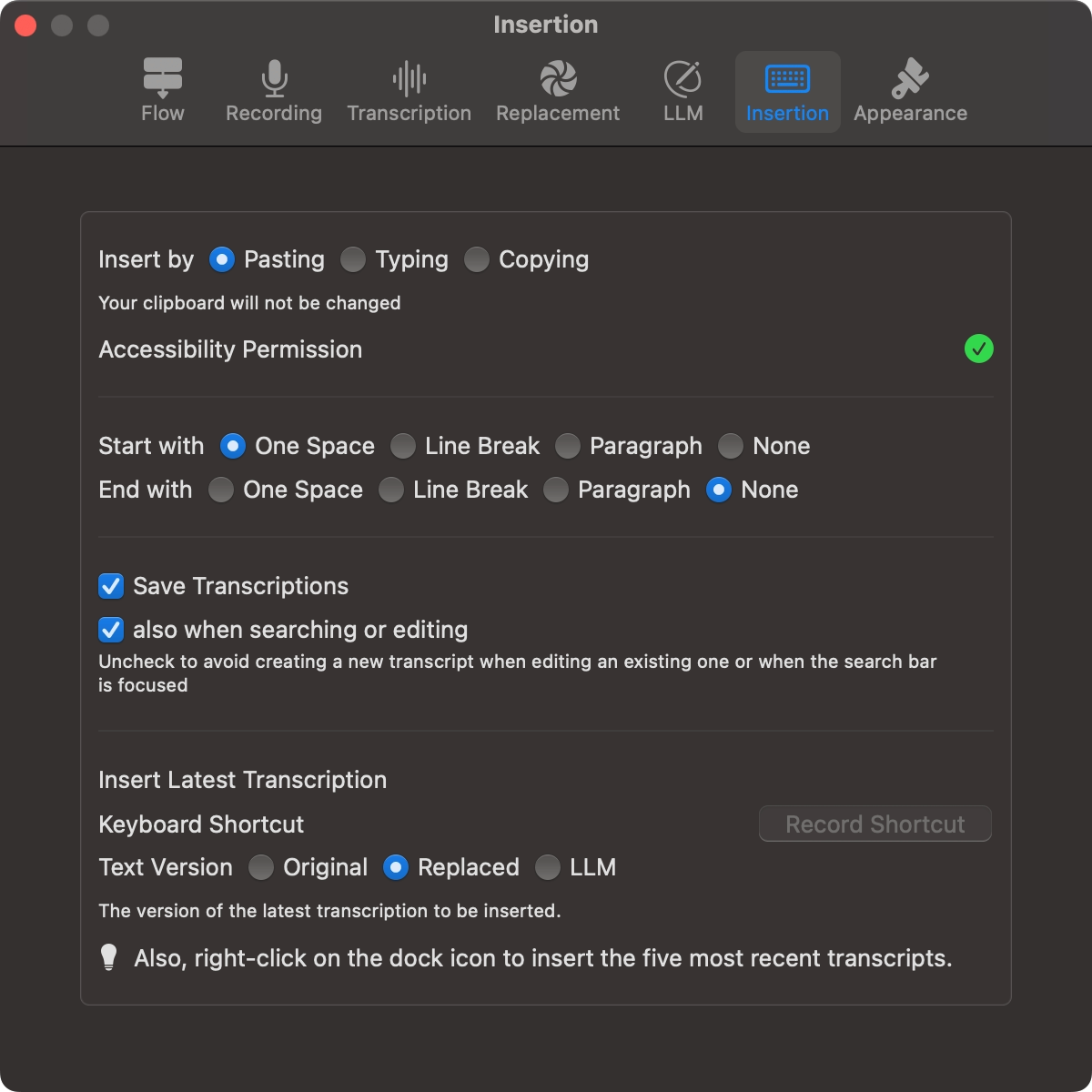
Formatting options
- Prepend: one space, a line break, or a paragraph
- Choose how to end: nothing, a space, a line break, or a paragraph
- Optional sound on insert
Insert Latest (choose the version)
With history enabled, use a shortcut to insert your most recent saved transcript. Choose Original, After Replacements or AI Processing in the Insert Latest settings. If the selected processed version is absent, the app falls back to an earlier version. This setting controls reuse of saved text, not delivery of each new recording.
Works great with replacements
Combine insertion with replacement rules. Use exact matches or Regex with capture groups (like $1) so your text lands in the final form you expect.