Should dictation keep listening or stop after each recording?
Quick answer — November 1, 2026: Use on-demand dictation when you want to decide when a passage is complete. Use continuous dictation when you want text processed after pauses while recording stays active. Dictop offers both on Mac, with adjustable silence timing for continuous mode and separate pause/resume controls for on-demand recording.
Your recording mode affects how you think while speaking. If every pause ends a passage too early, you may rush to keep the microphone busy. If a single recording grows too long, reviewing the result can become awkward.
Choose the mode that fits your writing rhythm.
These recording controls are available on Mac. On iPhone or iPad, check the recording options in your installed Dictop release. A keyboard session can keep the microphone active without offering the same silence-triggered processing or controls. For cross-app mobile input, follow the iPhone keyboard setup.
When does on-demand work well?
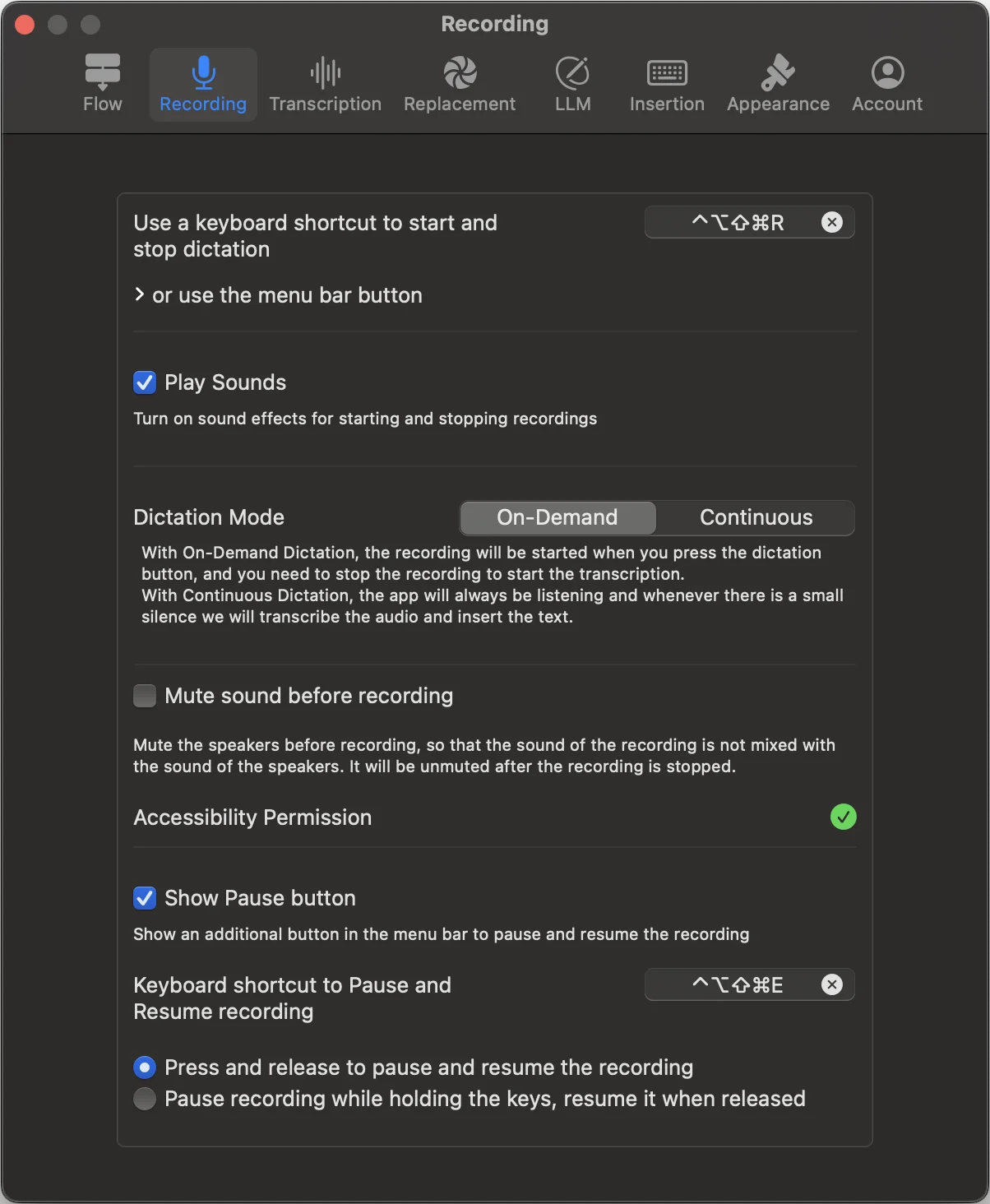
In on-demand mode, start recording with your shortcut or the menu bar, speak, and stop when you want Dictop to transcribe and deliver the passage.
This suits a paragraph you want to complete before reviewing, a carefully worded message, or a task where you regularly pause to think. Dictop lets you pause and resume the recording from the menu bar or a dedicated shortcut. You can configure press-to-toggle or hold-to-pause behavior.
A thinking pause does not have to become a finished transcript. You retain an explicit decision about when processing starts.
When does continuous mode work well?
Continuous mode keeps listening and processes speech after a pause of the configured length. It can suit a series of short passages when you want fewer start/stop actions.
Adjust silence timing in the recording settings. A shorter interval can produce smaller chunks, while a longer interval gives you more room to pause inside a thought. Test the setting at your normal speaking pace and adjust it until the pauses feel comfortable.
Continuous processing after a pause does not mean every word appears instantly as you say it. Transcription and optional refinement still take time.
Continuous mode pastes each processed passage directly. It does not use the on-demand Type, Copy or edit-before-paste options. It also accumulates the processed passages in a history note without separate original, replaced and AI versions. In the current version, continuous mode saves that note even when Save transcriptions is off. Use on-demand mode if you need the review checkpoint or want the history-saving switch to govern new transcripts.
Compare the modes with the same task
Try writing a short email in on-demand mode, then a similar draft in continuous mode. Notice whether you feel interrupted, whether a pause ends a thought too soon, and how much checking the resulting passages need.
| If you notice this | Try this change |
|---|---|
| You need long thinking pauses | Use on-demand recording and pause/resume |
| Repeated start/stop actions interrupt you | Test continuous mode |
| Continuous mode splits thoughts too early | Increase the silence interval |
| You want to check a whole paragraph first | Finish it as one on-demand recording |
Watch recording status
Use the menu bar to follow recording and processing state, and stop continuous recording when you finish. Choose a processing model appropriate for the audio you record; cloud transcription sends the applicable audio for processing and uses credits.
Try Dictop for Mac. The Mac guide covers recording controls and insertion settings.
By Dictop · Reviewed
Detailed settings and reference
dictop supports two complementary modes. In On‑Demand, press to record and press again to transcribe and insert or copy the result. In Continuous (always listening), dictop listens in the background and, after a pause of your chosen length, transcribes and inserts text automatically. Adjust the silence threshold and timing (default 3 seconds, range 1–10 seconds).
On‑Demand for thinking out loud
Press once to record; press again to transcribe and insert or copy. You can pause and resume while recording from the menu bar, or assign a dedicated shortcut with press/release behavior. Completed dictations are saved in History by default.
Continuous for live typing
In Continuous mode, a silence break triggers transcription, replacements, optional LLM refinement, then direct pasting. It bypasses Type, Copy and edit-before-paste. Processed passages accumulate in one history note without separate stage versions, even when Save transcriptions is off in the current app. Tune the silence time to match your speaking cadence.
Switch effortlessly
Assign shortcuts for Start/Stop and Pause/Resume. The status bar shows your current state at a glance: idle, recording, transcribing, LLM processing, or copied.
Energy and privacy considerations
Continuous mode keeps the microphone active between passages. Resource use depends on your model, settings and recording activity. On‑device speech models process audio locally; refinement is a separate choice. Supported Apple Intelligence processes text on device, while cloud refinement sends the transcript and configured prompts for processing.